
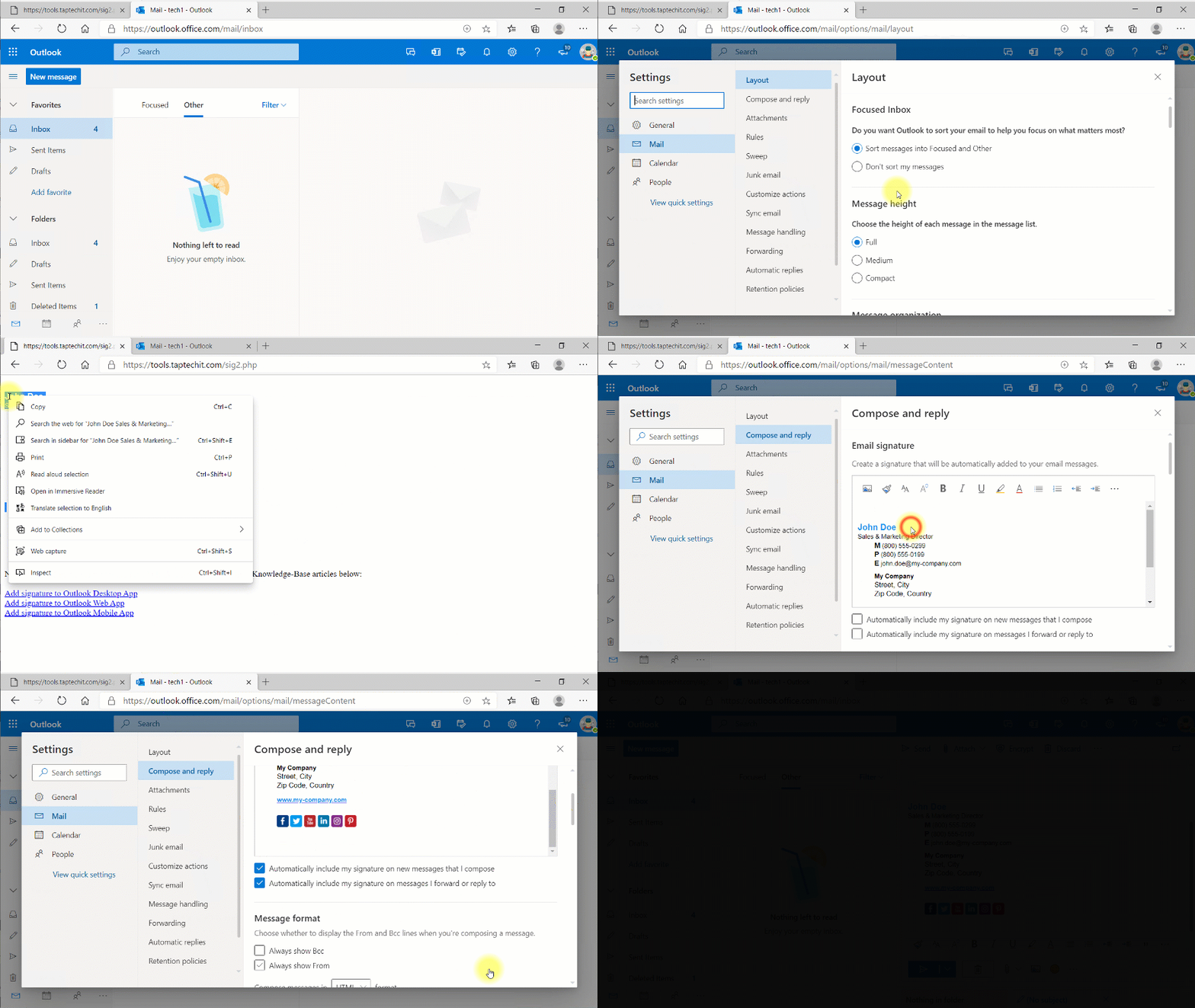
Create a Signature:
- In a web browser, sign in to Outlook Web App using the URL provided by the person who manages email for your organization. Enter your user name and password, and then select Sign in.
- On the nav bar, choose Settings (gear icon) > View All Outlook Settings.
- Click Compose and reply.
- Under Email signature, in the text box, type the signature you want to use (or copy and paste it). Use the formatting mini toolbar to change the appearance of the signature if you would like.
- If you want your signature to display at the bottom of all outgoing items, including replies and forwards, select Automatically include my signature on messages I send. If you don’t select this option, you can manually add your signature to any message.
- Choose Save.
Manually add your signature to a new message:
If you’ve created a signature, but didn’t select the option to add your signature to all outgoing messages, you can manually can add it to specific messages.
- In a web browser, sign in to Outlook Web App using the URL provided by the person who manages email for your organization. Enter your user name and password, and then select Sign in.
- Choose New mail above the folder list. A new message form opens in the reading pane.
- At the top of the message, choose Insert > Your signature.
- When your message is ready to go, choose Send.