
Accessing your computer for the first time
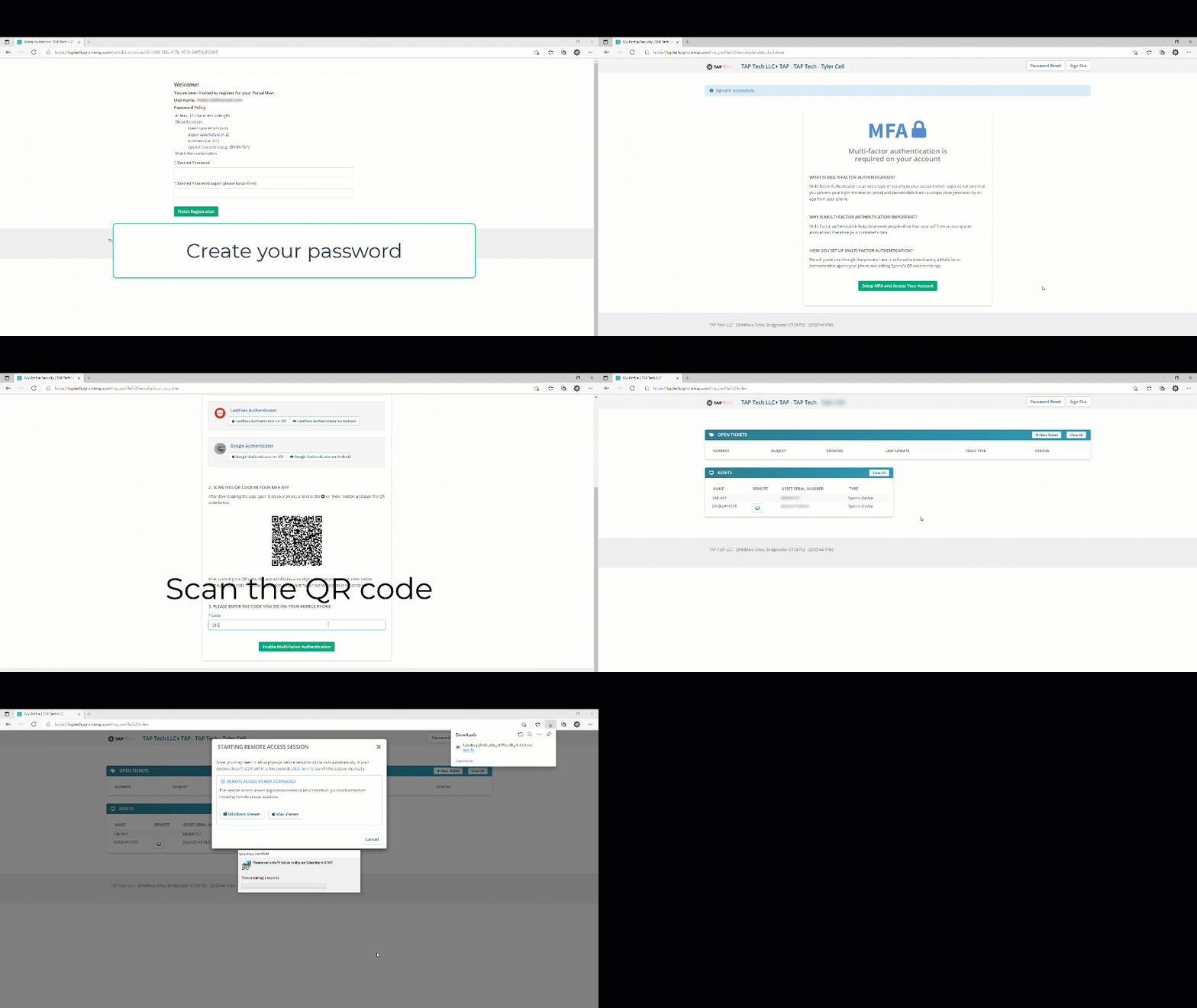
- You will receive an email prompting you to create your new password. Follow the email link.
- Create a unique password.
- Click the “here” link to log in.
- Type in your email and the password you’ve just created.
- Follow the instructions to set up MFA on your phone. If you already have an MFA app such as Authy, Google Authenticator, or Microsoft Authenticator, you can create a new account in the app.
- You can skip the recovery steps- if you lose access to your account please submit a ticket to support@taptechit.com
- Once you’ve logged in, scroll down to your computer and click the icon in the “Remote” column.
- Install the software on your computer by clicking the “Windows Viewer” or “Mac Viewer” buttons.
- Once the software is installed, launch the viewer and log in!
Don’t forget to bookmark this link:
https://taptech.syncromsp.com/my_profile/user_login