
How Answering Rules Work
Answering Rules are always evaluated from top to bottom, based on Time Frame. A Time Frame may only be used once per user’s answering rules. If two time frames overlap, the topmost answering rule will be processed, so it is recommended to sort answering rules from most specific to least specific.
Modify Answering Rules
- Log in to the Manager Portal
- Navigate to Users
NOTE: Basic Users will navigate to Answering Rules and proceed to step 5.
- Click on the user to update
- Go to the Answering Rules tab
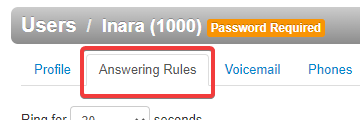
- Set the Ring for time. This is how long the user’s extension will ring when called.
NOTE: 1 ring = 5 seconds. The standard time is 6 rings or 30 seconds - To modify an existing rule, click the pencil icon next to it. To create a new rule, click Add Rule
- If creating a new rule, select a Time Frame
- Configure the options as desired according to the Answering Rule Options
- Click Save
- To sort the rule, click and drag over the arrow icons
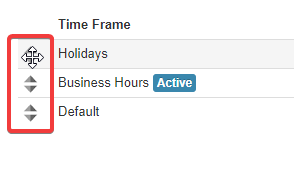
- Click Save to Apply Changes

- The current rule will then appear with a blue Active tag beside it
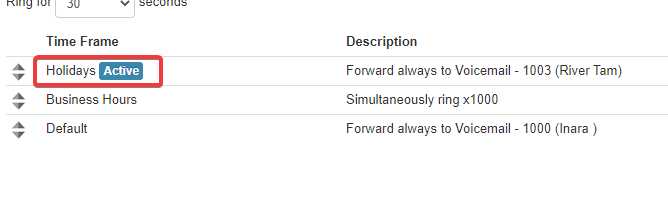
Answering Rule Options
| Option | Description |
|---|---|
| Enabled | Checked by default. If unchecked, the rule will be ignored and will display a black Disabled tag |
| Do Not Disturb | Automatically sends calls to voicemail without ringing |
| Call Screening | Requires Callers to state their names before connecting. User is given the option to decline the call before answering |
| Call Forwarding: Always | Immediately forwards the call to the specified destination 24/7 |
| Call Forwarding: On Active | Forwards calls to the specified destination when the user is not on a call |
| Call Forwarding: When Busy | Forwards calls to the specified destination when the user is on a call NOTE: This feature is unavailable if simultaneous ring is enabled |
| Call Forwarding: When Unanswered | Forwards calls to the specified destination after the ring for time is met. If unused, calls will forward to voicemail |
| Call Forwarding: When Offline | Forwards calls to the specified destination if all devices are offline |
| Simultaneous Ring | Ring multiple extensions, devices, or phone numbers simultaneously |
| Include users extension | Chooses whether to include own extension in simultaneous ring |
| Ring all user’s phones | Includes all registered devices belonging to the extensions specified. Otherwise, the user will have to note each device |
| Answer confirmation for offnet numbers | Requires cell phone numbers to press 1 if they answer to prevent calls going to offnet voicemail |
| Just ring user’s extension | Rings only the device registered to the user’s main phone |