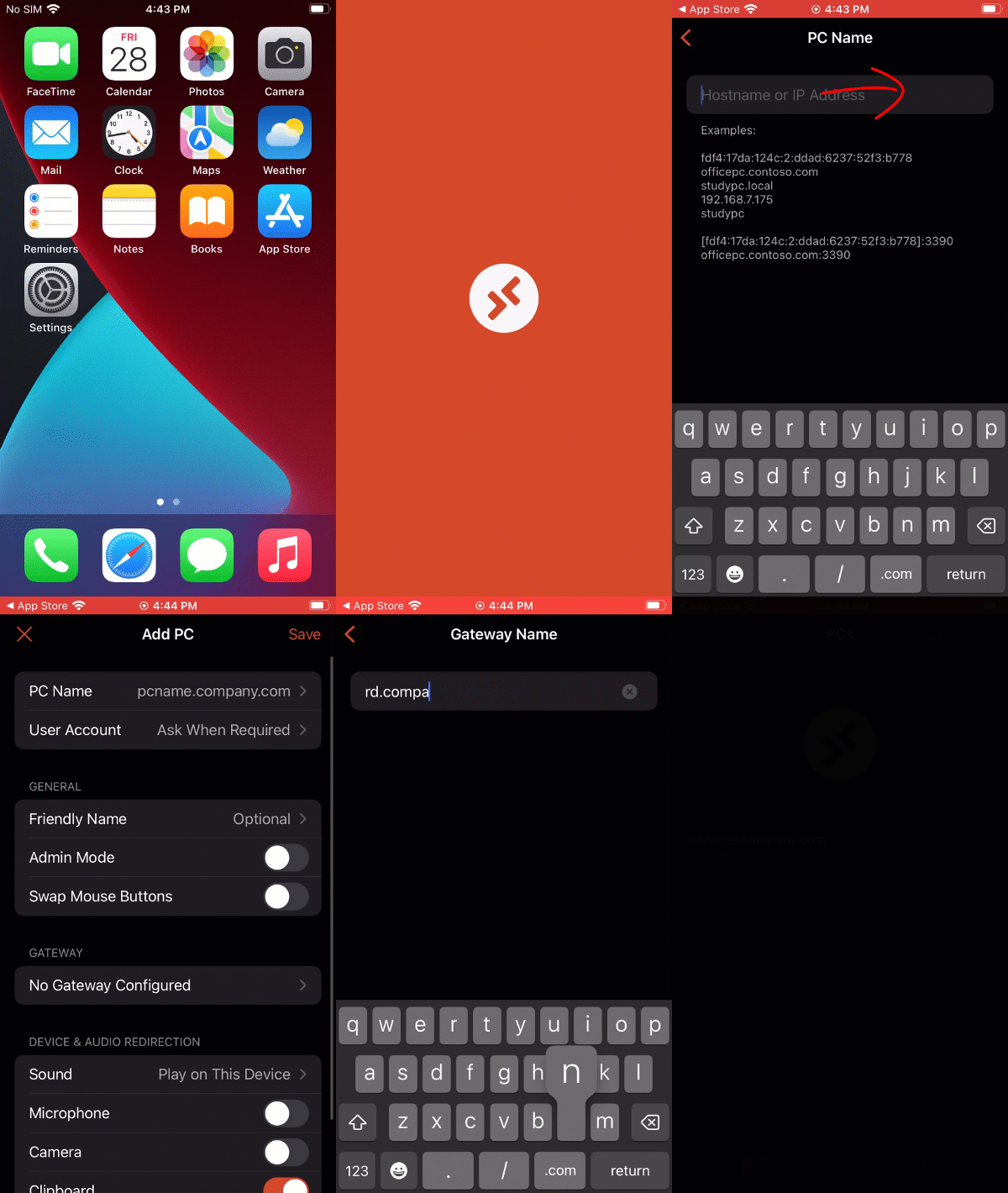
While we do not recommend accessing a desktop computer from an iOS device due to usability limiations, it is possible, and this guide should help show you how.
Steps
- Download the Microsoft Remote Desktop Mobile App by visiting the app store or this link: Remote Desktop Mobile on the App Store (apple.com)
- Open the app and allow the requested permissions.
- Once the app loads, tap the “+” icon at the top right.
- Tap on “Add PC”.
- Enter the hostname of your computer (TAP Tech will provide this to you).
- You can enter a Friendly Name such as “Work computer” if you would like.
- Tap on the item under Gateway, if it says “No Gateway Configured”.
- Tap on “Add Gateway”.
- Enter the Gateway Name given to you by TAP Tech.
- Tap the red back arrow at the top left to go back.
- Tap “Save” at the top right.
- Tap the red back arrow at the top left.
- Tap the “Save” button at the top right.