
Working with dual monitors in Windows can be confusing at first.
When you plug in your monitor for the first time, Windows will default to “Duplicate” mode. Duplicate mode mirrors the display from one to the other. You’ll see your mouse moving around on both screens at the same time.
Most users prefer to use the “Extend” mode. This allows you to stretch your view from one screen to the next.
To change your setup:
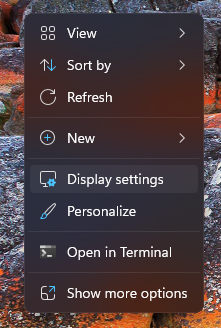
- Right Click on a blank space of your Desktop and select Display Settings
2. Select the “Extend these displays” option.
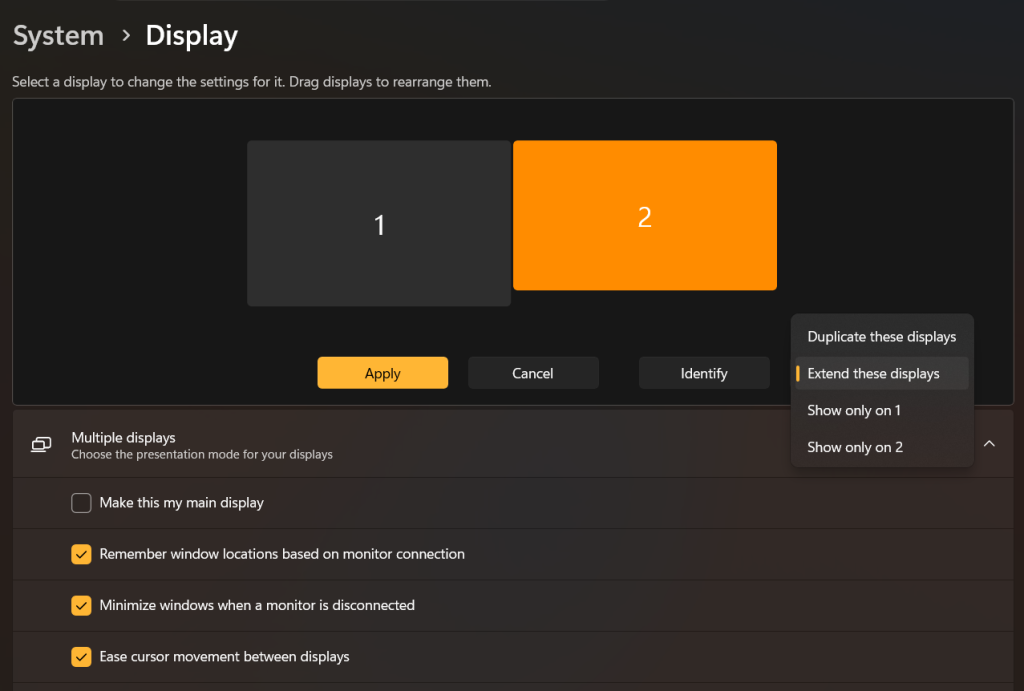
3. You can click the “Identify” button to help identify and arrange your screens. You can drag each screen into position to match what you have set up on your desk.