
Access your Microsoft Account’s Security Info page
- Navigate to https://myaccount.microsoft.com, and click My Account -> Security Info
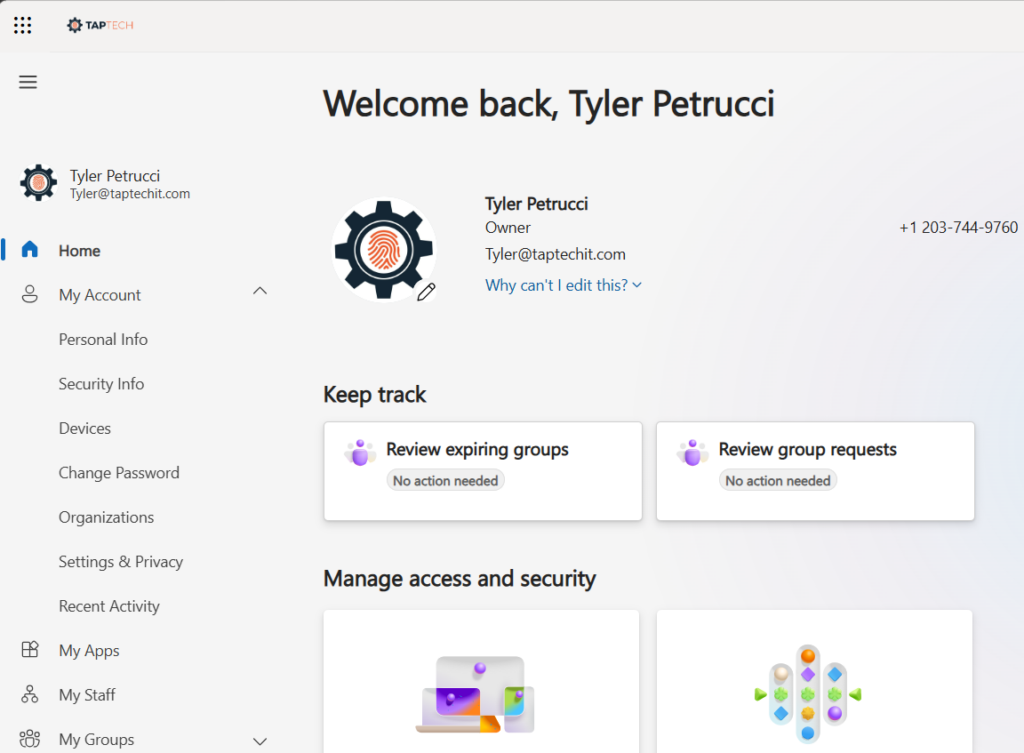
- Click Delete on any outdated or innappropriate sign-in methods.
- Click Add sign-in method, choose Authenticator app from the drop-down, then click Add.
Downloading the App
- Navigate to https://aka.ms/getMicrosoftAuthenticator and scan the appropriate QR code
Configuring Microsoft Authenticator
- Open Microsoft Authenticator App.
- Tap on the “+” or “Add Account” button.
- Select “Work or school account.”
- Choose Scan a QR code, and use your device’s camera to scan the QR code provided by the app.
- Follow the on-screen instructions to complete the setup, which should include performing a test MFA challenge to confirm it is working.
General Tips
- Enable biometric authentication (e.g., fingerprint or facial recognition) for stronger security and easier sign-in.
- Promptly apply any updates to the Microsoft Authenticator app.
- When getting a new phone, be aware that even if your old data and apps get automatically transferred, the multifactor registration may not. If this happens, reach out to your company’s Office 365 Administrator, or submit a ticket to support@taptechit.com
Remember, the specific steps may vary slightly based on app updates and configurations chosen by your organization or the service you are connecting to. Always follow best practices for securing your accounts and devices.