
Scope
Intended Audience: All End Users
This article outlines how to turn call forwarding on or off for an extension via a phone or the manager portal.
Requirements
- Basic User Access to Manager Portal or higher (if Forwarding from Portal)
NOTE: Basic users may only configure call forwarding for their own user. Site Managers or higher may turn on forwarding for other users.
Note on Call Forwarding
When configuring forwarding, users may choose to show their own caller ID or the caller’s caller ID.
Forwarding to the 10-digit number (5556667777) will display the user’s caller ID.
Forwarding to the 11-digit number (15556667777) will display the caller’s caller ID.
Forward From A Phone
To configure call forwarding dial *72<Phone Number> (ie *725556667777). This will turn forwarding on and set the forwarding number.
Once the number is set, users may dial *73 to turn forwarding off and *40 to turn it back on using the same number.
Forward From the Manager Portal
- Log in to the Manager Portal
- Navigate to Users
- Select the user to update
- Go to the Answering Rules tab
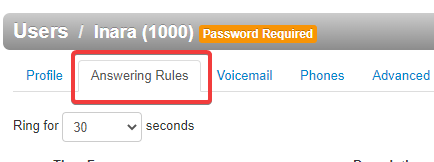
- It is recommended to set the Ring For time to at least 35 seconds, or callers will receive an “invalid destination” message if the extension times out before the cell phone does.
- Select the active answering rule to edit
- Check Call Forwarding Always and set the phone number to forward to
- Click Save