Scope
This document will show you how to send a fax from the Manager Portal with Native Fax
Requirements
- Access to Manager Portal ( Basic User minimum )
- Native Fax feature enabled
Send a Fax From The Manager Portal
- Log in to the Manager Portal
- Click on the Fax navigation icon as shown below. If you don’t see this button, the fax is not configured or enabled on your account

- Note that a Fax Number should contain your fax number. Click


- In the Send Fax modal window. Click
 and attach the document you want to fax. The Caller ID should show your fax number. Enter a 10 digit fax number to where you want to send the fax to. Make sure to exclude any special characters
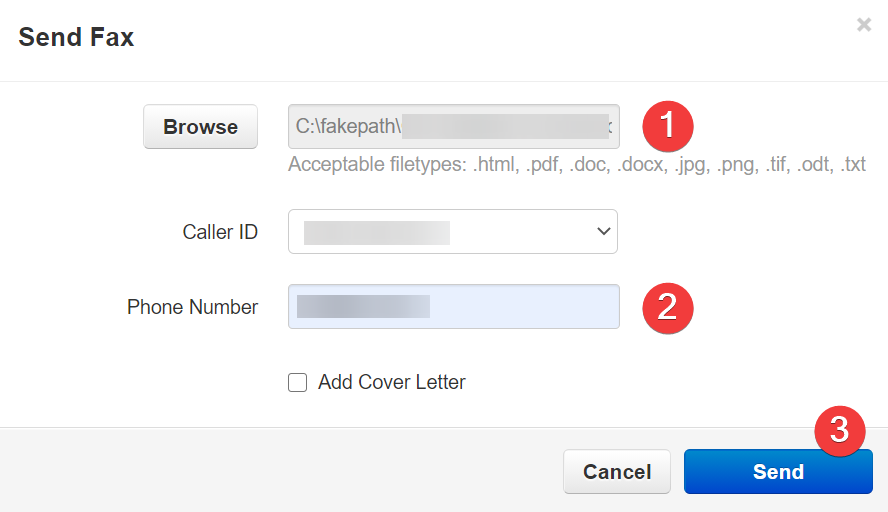 Note: Supported file types are
 .html, .pdf, .doc, .docx, .jpg, .png, .tif, .odt, .txt - Click
 to send the fax
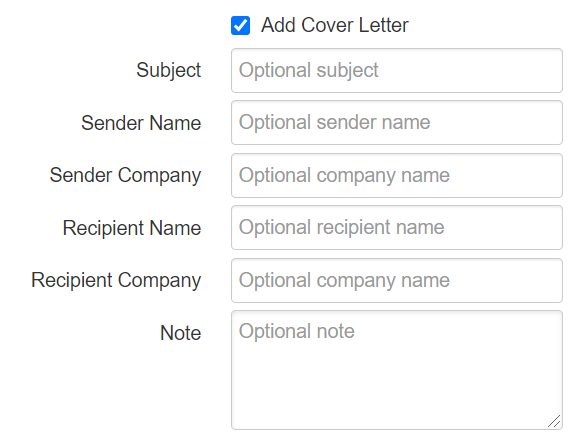
(Optional) – Add a Cover Letter
- Click

- Populate the following fields
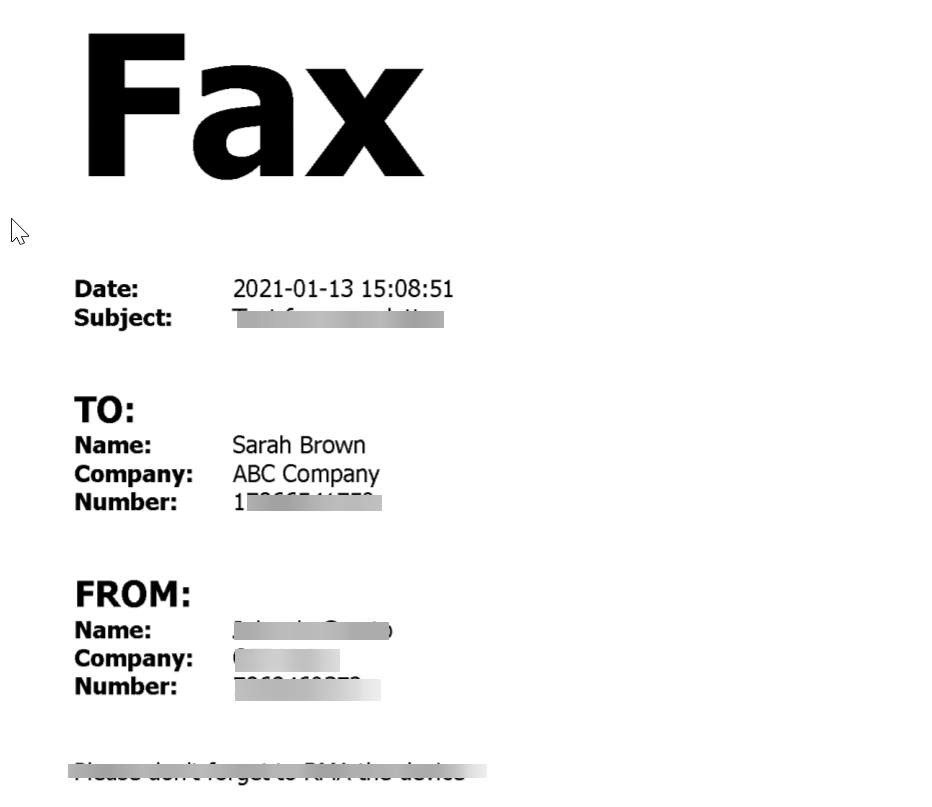
- Example fax with the cover letter