Login via https://voice.tappbx.com
Make a Call
Via Contact Page
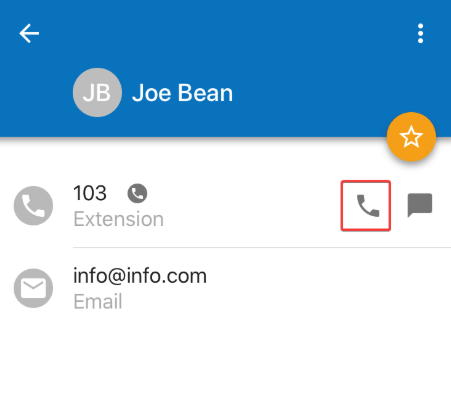
- Select the contact you want to call
- Press the phone icon to the right of the contact
Make a Call Via the Dialpad
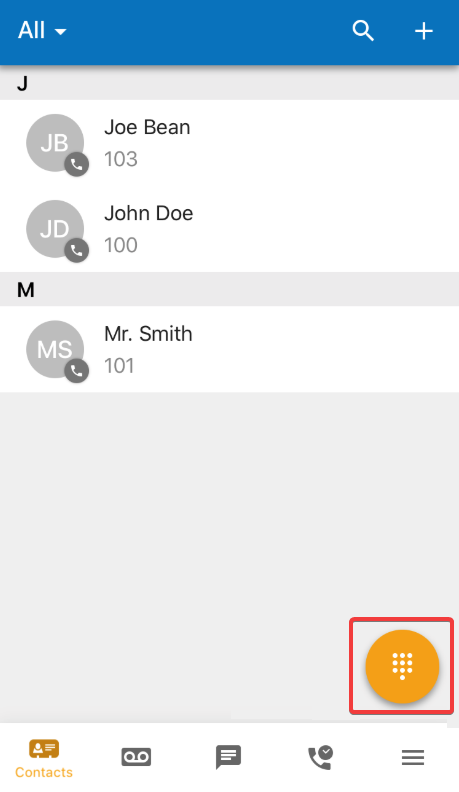
- Press on the yellow dial pad icon in the lower right corner
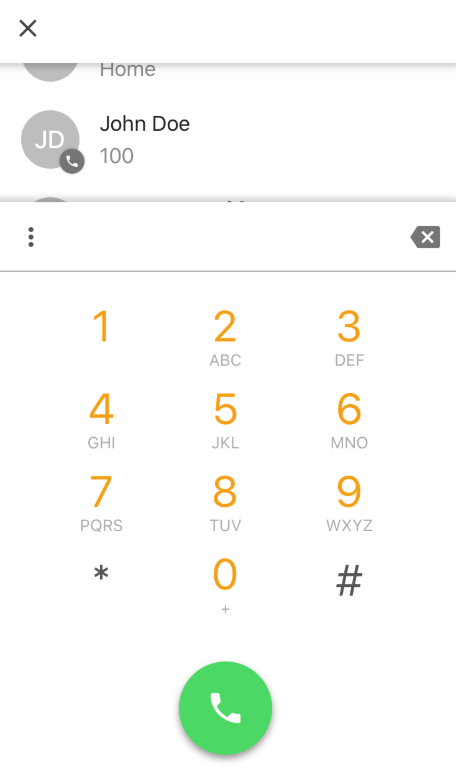
- Dial the number or extension you wish to reach
- Press the phone icon at the bottom to start the call
Transfer a Call
- Press Transfer from an active call
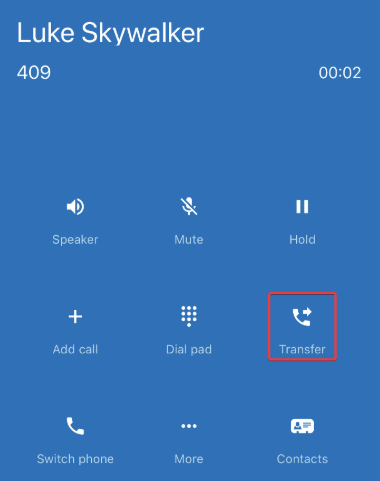
- Select whether to transfer to a contact or dial a number
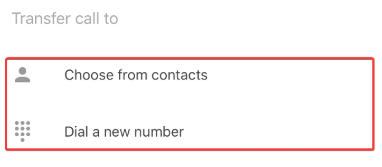
- Dial or select the contact then choose whether to use a blind or attended transfer
NOTE: Learn more about blind and attended transfers here
Conference Calling
- Press Add call from an active call
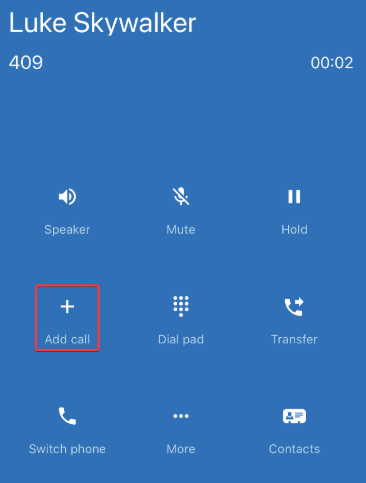
- Select whether to transfer to a contact or dial a number
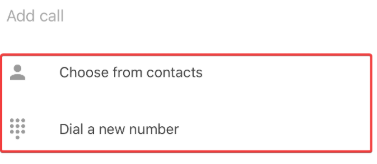
Record a Call
- Press Add call from an active call
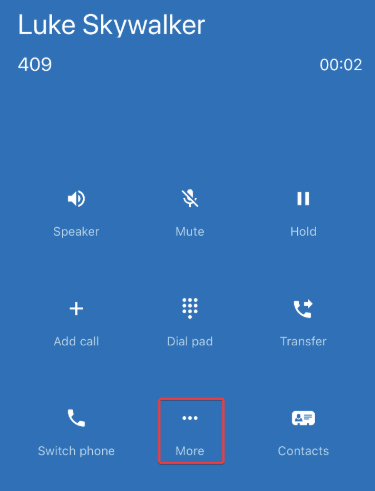
- Press Record
Chat & SMS
Chat between users is enabled by default, however, SMS must be enabled by your service provider. Please contact your service provider for more information
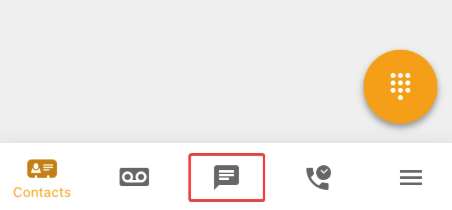
- Select the Messaging tab
- Tap the yellow and white pencil icon in the lower right corner
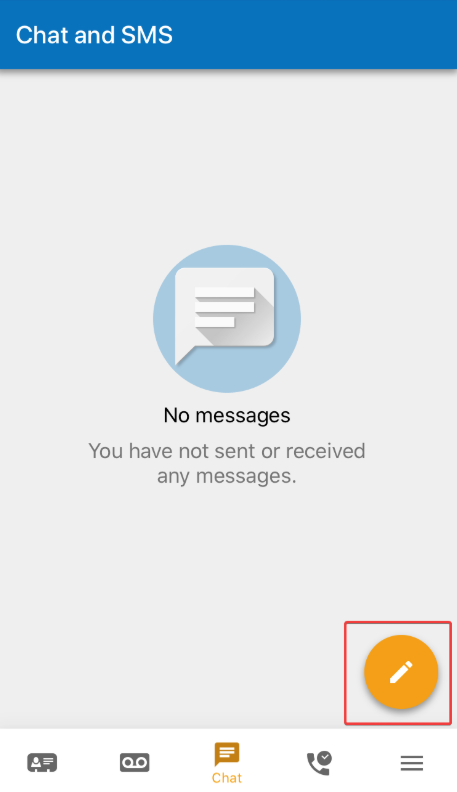
- Type in the phone number or contact you would like to message and press Send
- Active chats will then appear on this tab. You can select them to send messages in the same thread
Check Your Voicemail
- Tap the voicemail icon
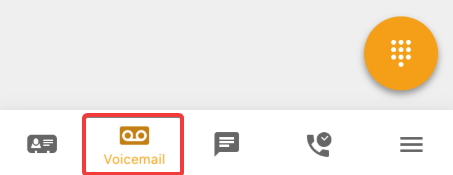
- Here you will be able to view any voicemail messages that have been left for you
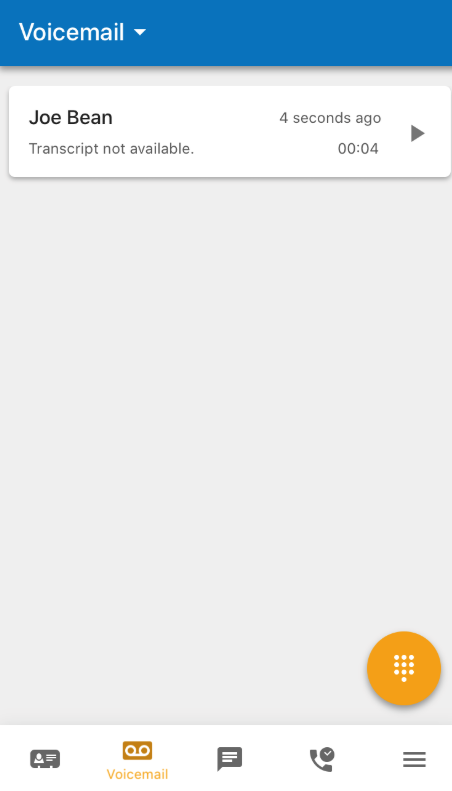
- You can sort through them by new, saved, and trash. To change the sorting, click the drop-down arrow next to Voicemail in the top right and select what you would like to sort by
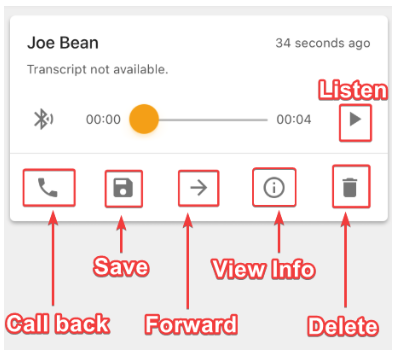
- Tap on the voicemail to see the following options
- Listen to the voicemail
- Call back the caller
- Save the voicemail
- Forward to voicemail to another extension
- View the voicemail and caller information
- Delete the voicemail